Firefox 144 - Profile Management

The new version of Firefox was released yesterday. They announced a new profile manager in the release notes. But, it is in Progressive Rollout. That means not everyone has it yet. And the release notes were explicit that the new profile manager is not available on Windows 10 yet.

As someone who regularly uses about:profiles to compartmentalize different aspects of my online life, I am looking forward to using this feature once it is fully released.

Although, I have enough profiles where it would be useful to search from that drop-down menu. Otherwise, I’ll be stuck on about:profiles

Profile management, now rolling out gradually to users globally over the next few weeks, helps you protect your privacy and stay focused by separating your online life into distinct profiles for work, school, vacation planning, or whatever you choose.
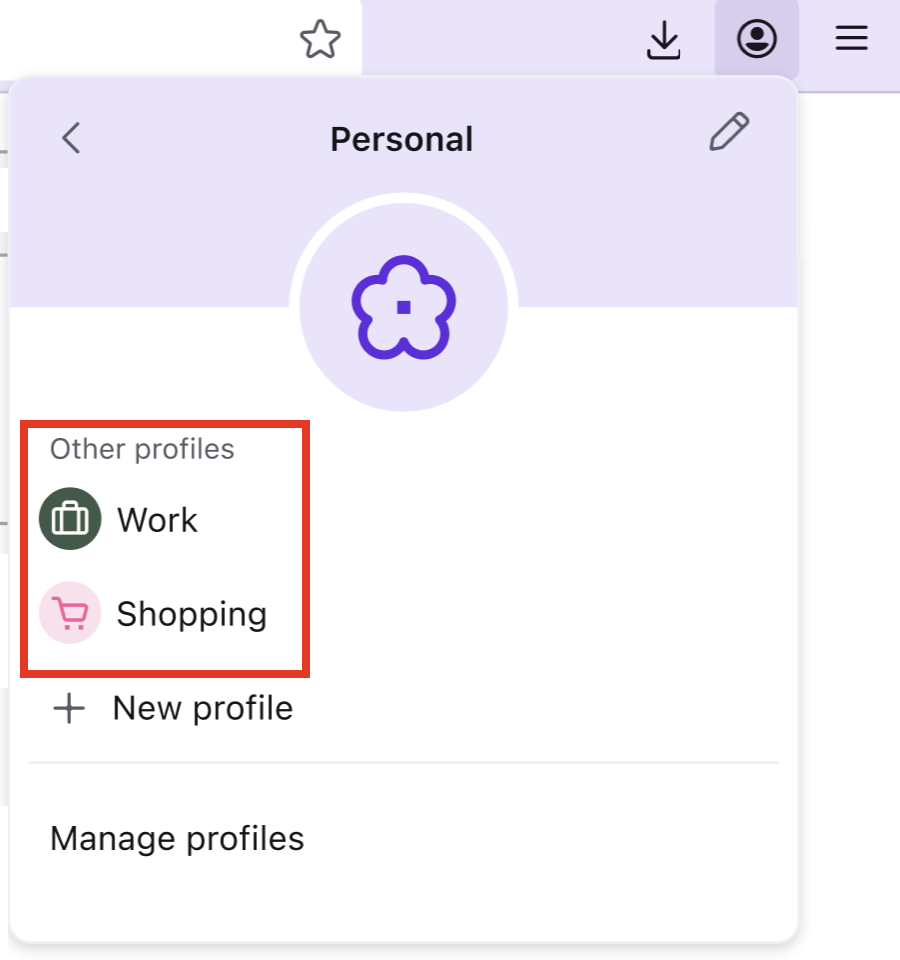

Note: You cannot sign in with the same Mozilla account on multiple profiles on the same device, as this prevents accidental data merging.
2 Likes

It’s good for this feature to be more discoverable because a lot of users (even those familiar with Firefox) don’t know it even exists. GNOME exposes an Open Profile Manager option if you right-click the Firefox desktop icon on Linux, but I don’t think this happens on Windows and macOS.

about:profiles is a useful screen but it’s ugly as sin and you need to remember the URL to get to it. If you’re managing a lot of profiles in quick succession, though, it’s definitely superior to Chrome browser profiles.

I don’t use profiles much. I do use container tabs with the Multi-Account Containers extension though.

1 Like

I never noticed the ‘Profile Manager’ entry in the application’s context menu.

Instead, I got in the habit of putting profile-specific shortcuts on my Desktop.

I’ve forgotten the specifics. But, .desktop is the shortcut specification adopted by GNOME and KDE.

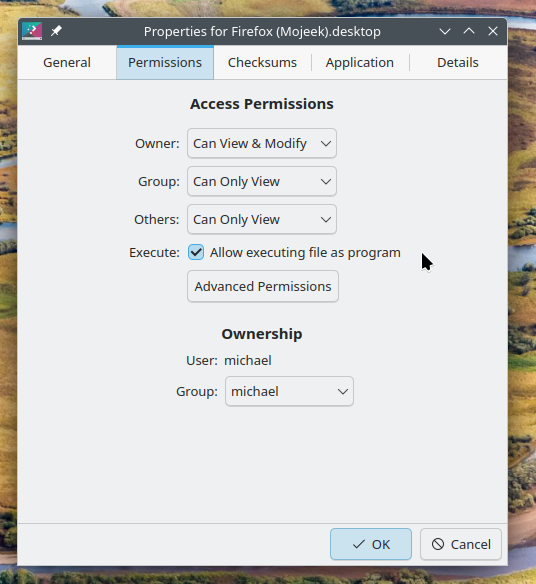
Originally, I think I just copied the Firefox Desktop Entry and modified the Exec= line with: firefox -p "profile name", which is the command-line option to launch a specific profile. .desktop accepts those additional command-line options in the file.

If I remember correctly, KDE gives you a warning if you try to launch a new shortcut without setting the file permissions by checking the box for ‘Allow executing file as program’ (aka, adding the execute bit with chmod +x your_file.desktop at the command line).

As I said, I put my shortcuts on the actual desktop. However, if you put them in:

~/.local/share/applications/

… then the shortcuts will show in your application launcher (start menu).

Just be sure to update the Name= value, or the different profiles will all be named “Firefox” in the menu.

Click to see a Firefox profile example.
#!/usr/bin/env xdg-open
[Desktop Entry]
Comment[en_US]=
Comment=
Exec=firefox -p "Mojeek Discourse"
GenericName[en_US]=
GenericName=
Icon=firefox
MimeType=
Name[en_US]=Mojeek
Name=Firefox (Mojeek)
Path=
StartupNotify=true
Terminal=false
TerminalOptions=
Type=Application
X-KDE-SubstituteUID=false
X-KDE-Username=

Creating .desktop Shortcuts


I always have my bookmarks toolbar showing.

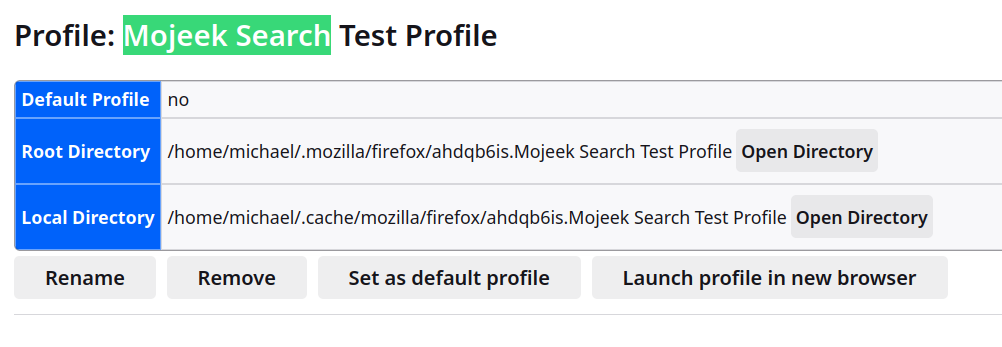
For less common profiles, I have the about:profiles URL saved as a bookmark.

Typically, I click on my bookmark and immediately press Ctrl+F to search for a profile.

Finally, click on the “Launch profile in new browser” button.

This has been much more user-friendly than the ‘Profile Manager’ shown at startup.

1 Like

I’ve gotten very familiar with editing .desktop files over the years. I’ve had to go into the Steam one to set scaling properly, and several applications like Thunderbird to set an environment variable to force the Wayland version.

There are some CLI tools for manipulating desktop entry files:

  • desktop-file-edit for editing a .desktop file non-interactively. Useful for scripts…for example, in a Flatpak manifest. See how to use it with desktop-file-edit --help-all.
  • desktop-file-validate for validating that the .desktop entry file is valid.
  • desktop-file-install for installing .desktop files.
1 Like